The synopsis
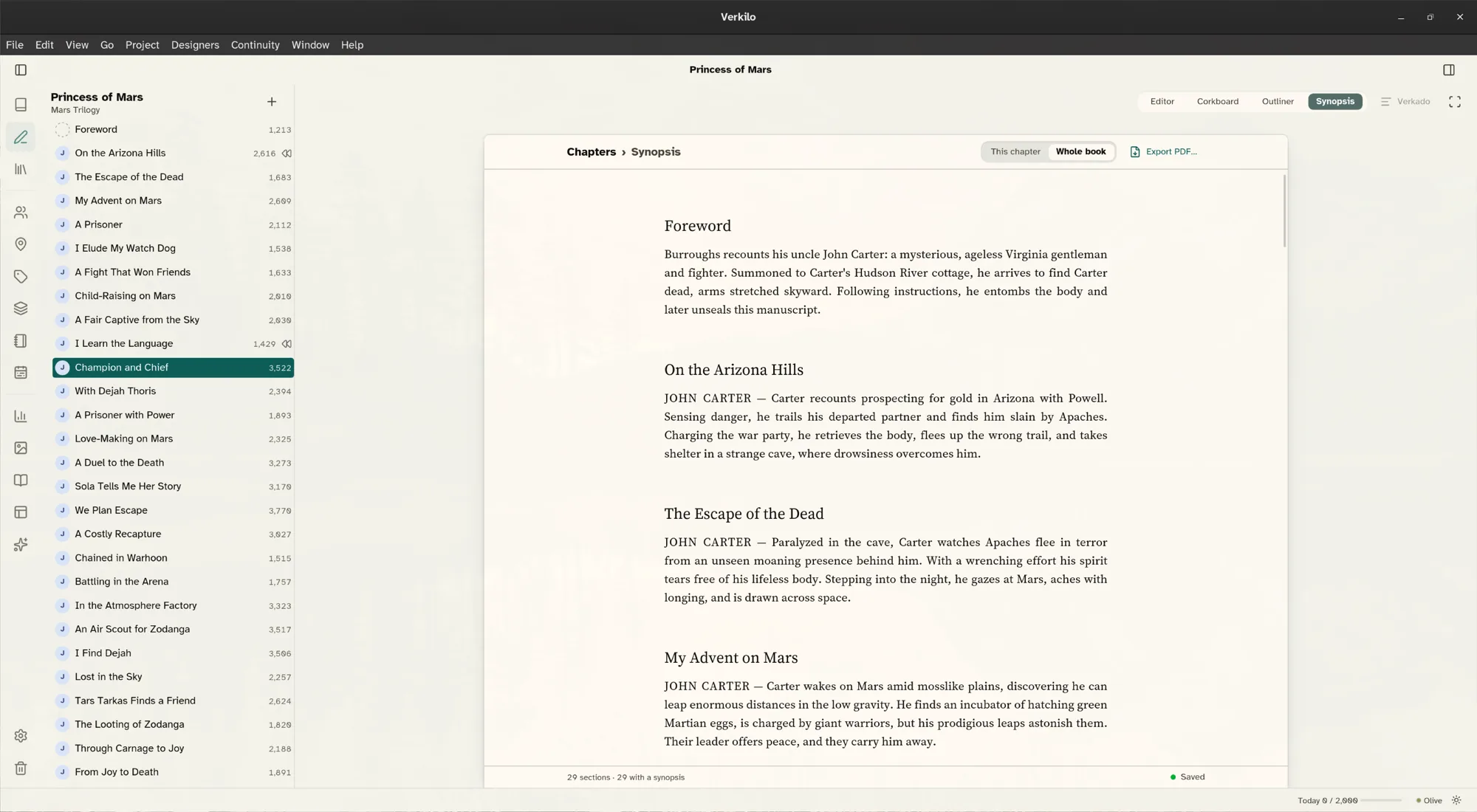
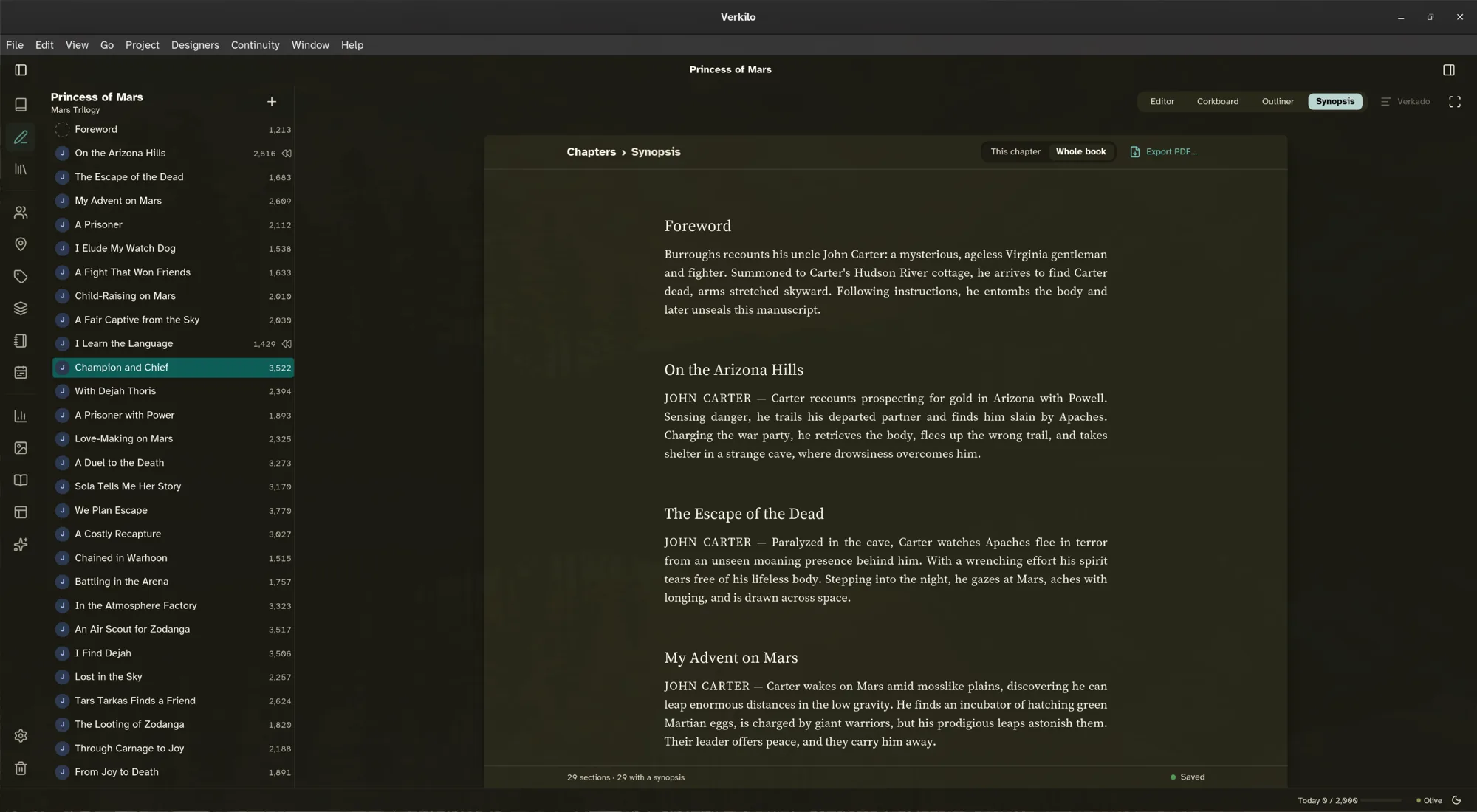
The synopsis shows your book’s outline as a finished document: every chapter title, every scene title under it, and each one’s synopsis. It reads like a page, not a form. Nothing looks like a field until you edit it.
Opening it#
- Open the book you want to look at in the editor.
- Click Synopsis in the bar above the page. The synopsis opens in place of the page, with the bar still above it.
- Click Editor in that bar, or press
Esc, to go back to writing.
At the top of the synopsis, choose This chapter to see only the chapter you’re working in, or Whole book to see everything. Verkilo remembers your choice.
What it shows#
- Chapters and scenes. Each top-level section in the sidebar is a chapter. Every section inside it is a scene, in the order of the sidebar.
- Synopses. The same synopsis you see on the corkboard, in the outliner, and in the details panel. Leave a blank line in a synopsis to start a new paragraph.
- Point of view. When a section has a point-of-view character, the name leads into its synopsis in capitals: JOHN CARTER — Carter wakes on Mars…
- The main story only. Front and back matter aren’t included.
The footer counts the sections and how many of them have a synopsis, so you can see what’s still missing.
Editing in place#
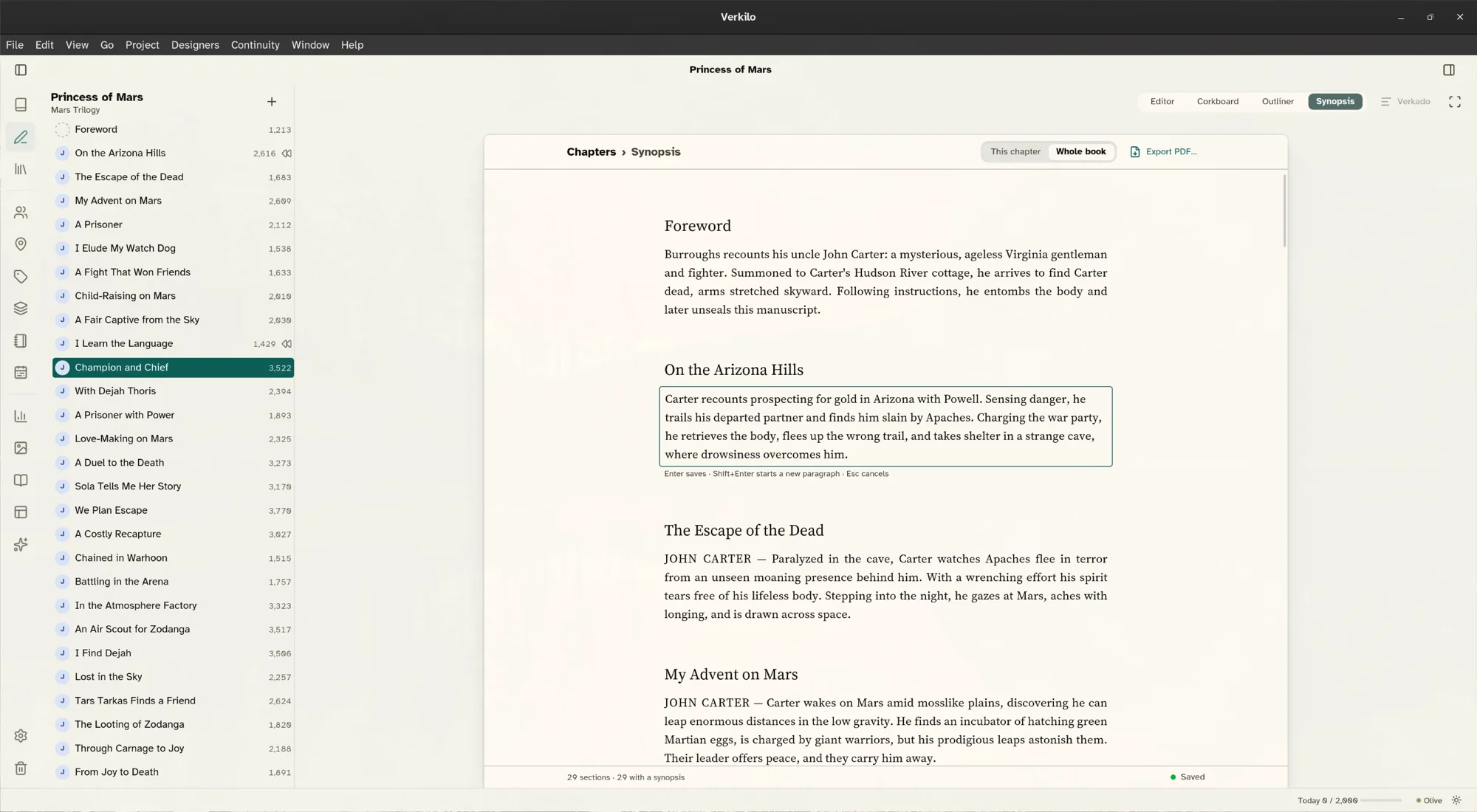
- Double-click a title or a synopsis. Or move to it with
Taband pressEnterorF2. - Type your change. In a synopsis,
Shift+Enterstarts a new paragraph. - Press
Enter, or click away, to save. PressEscto cancel.
A scene without a synopsis says No synopsis yet. Double-click it to write one.
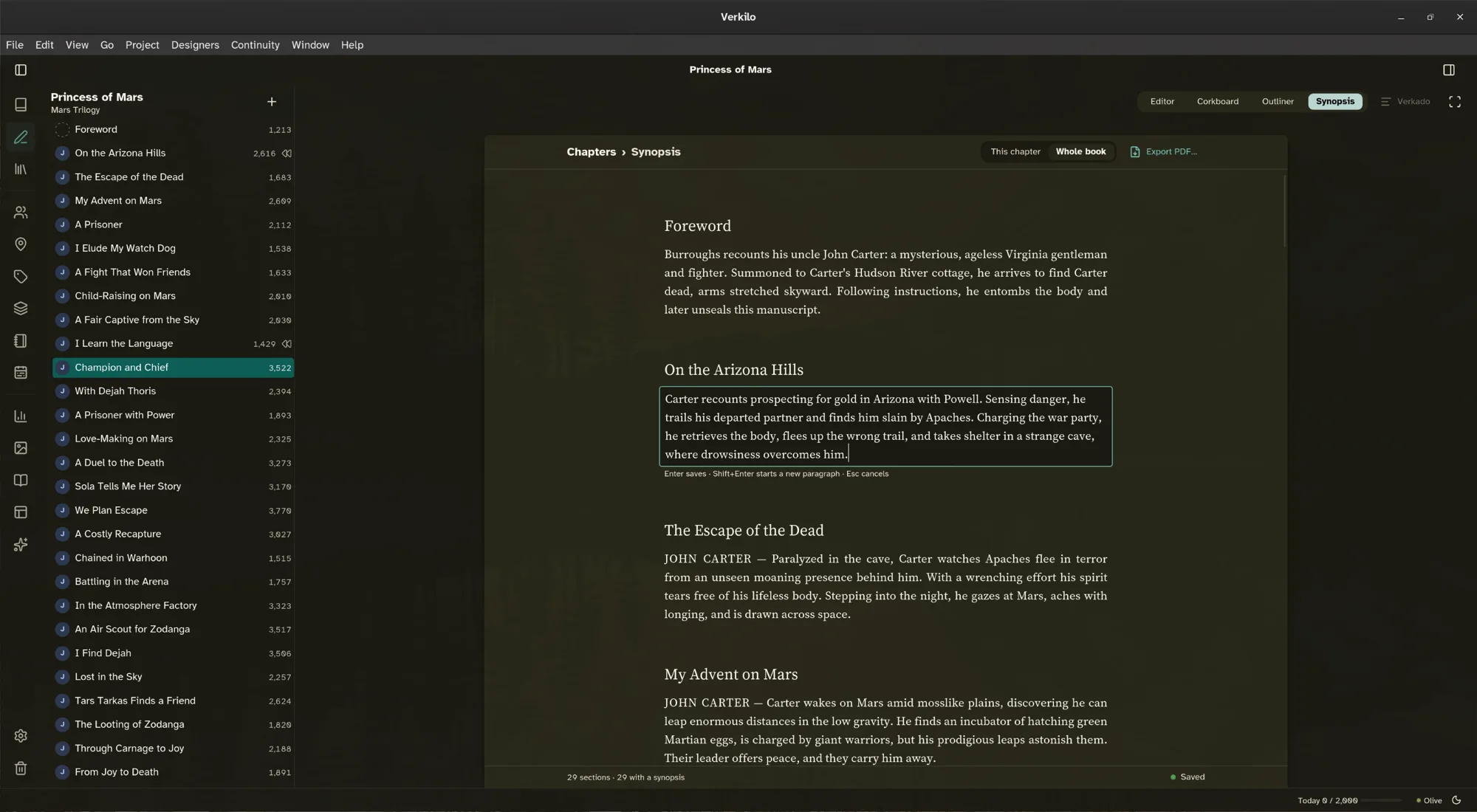
Changes save straight to the section, so the sidebar, corkboard, outliner, and editor all show them right away. The footer shows when your change is saved.
Printing a synopsis#
Some revision is easier with a pen. To print your synopsis:
- Open the synopsis and choose This chapter or Whole book.
- Click Export PDF… at the top.
- Choose the page layout (see below).
- Click Export PDF, then choose where to save the file.
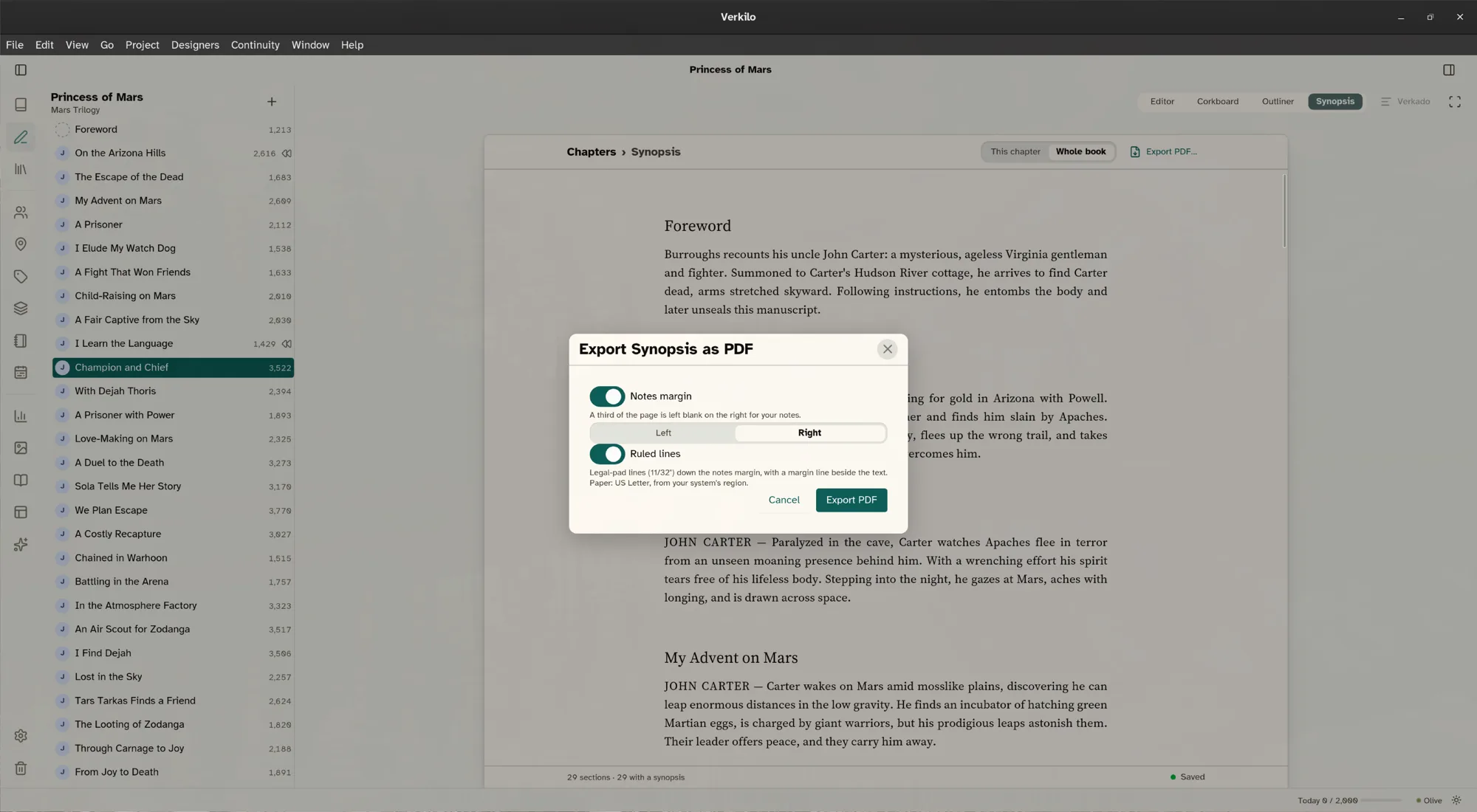
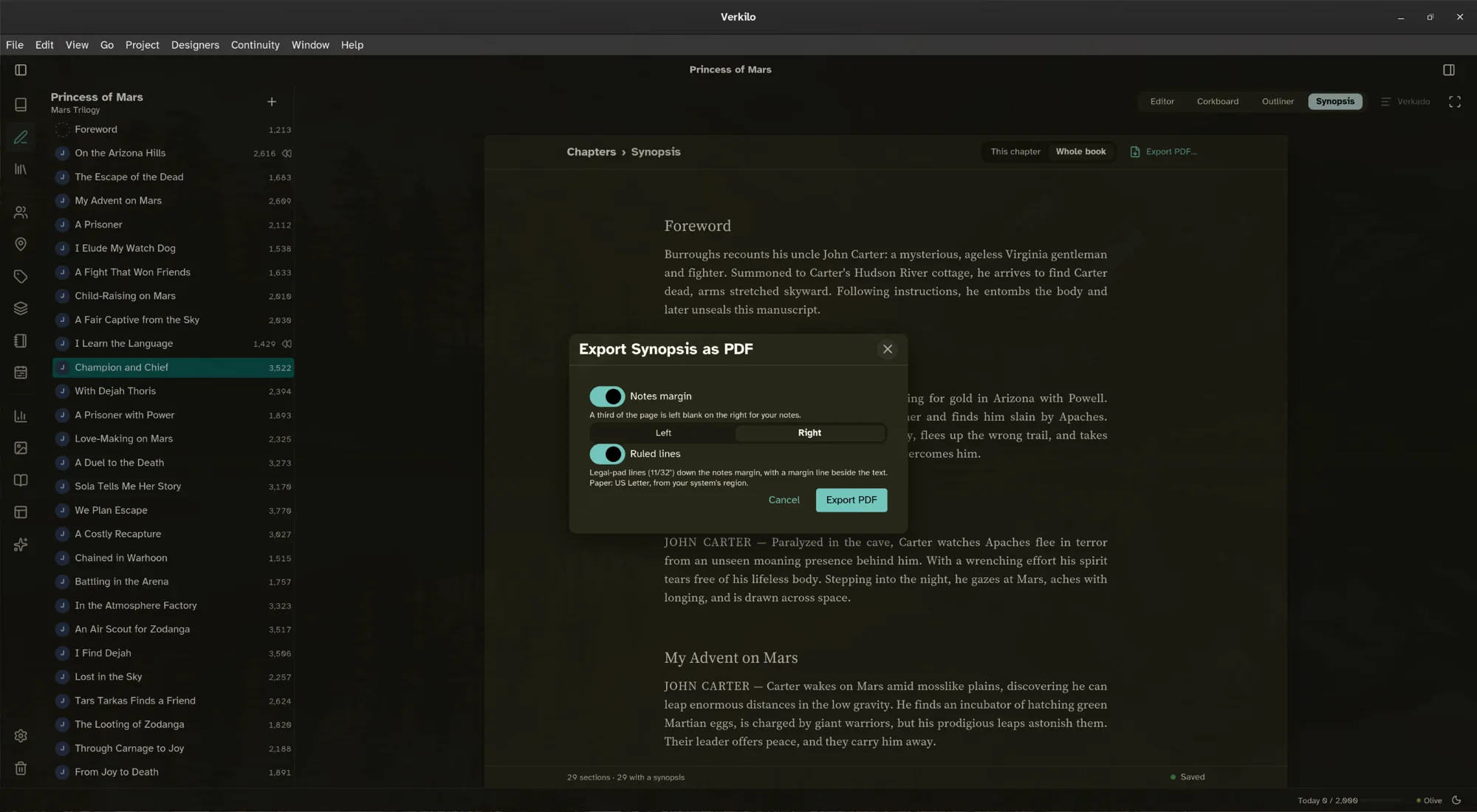
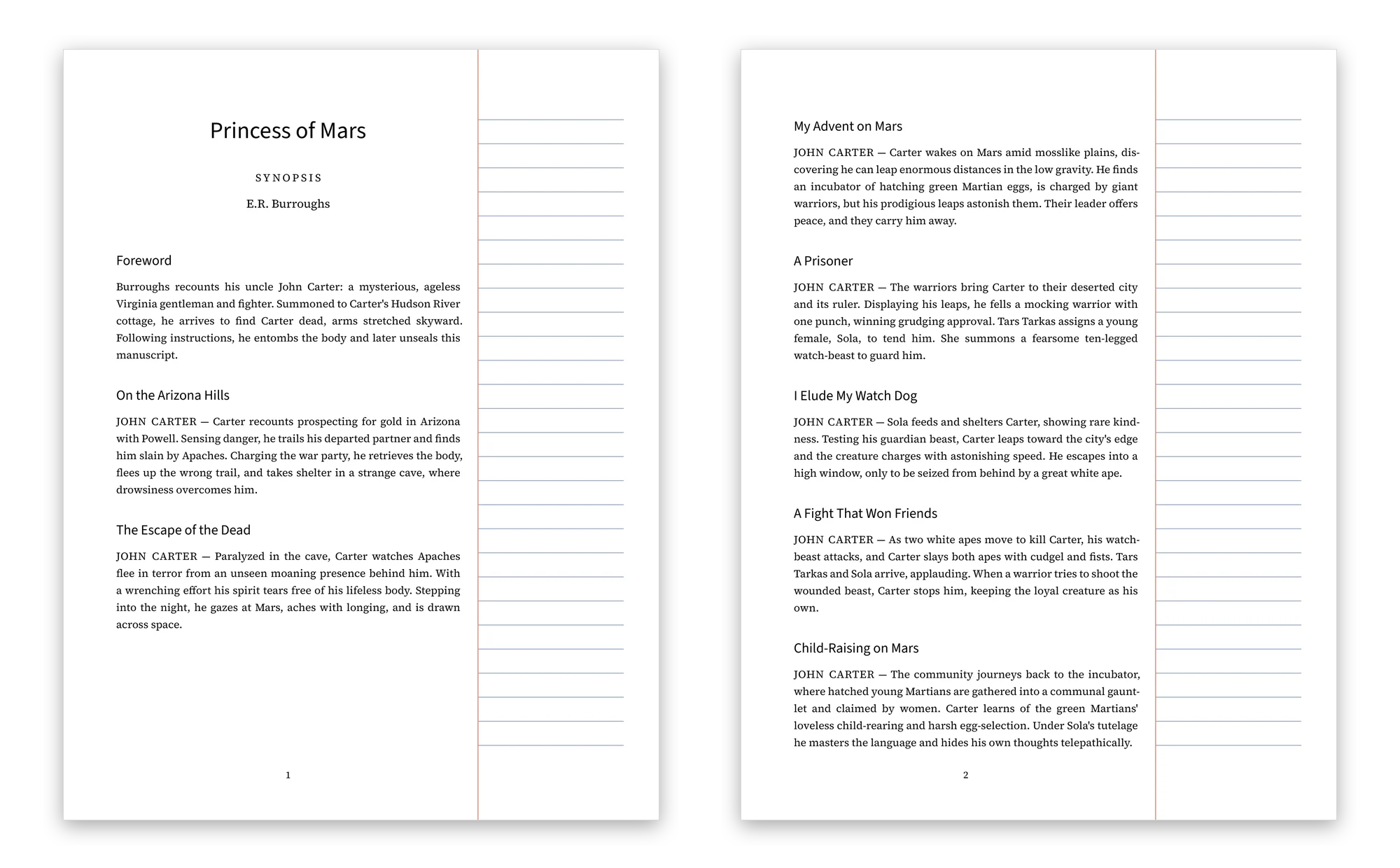
The PDF is a plain manuscript page in your project’s fonts, with page numbers. Verkilo uses US Letter or A4, depending on your computer’s region. No scene is split across two pages: one that doesn’t fit moves whole to the next page.
Room for notes#
Turn on Notes margin to leave a third of each page blank for handwritten notes.
- Choose Right or Left. Right suits most right-handed writers: your hand rests off the text, and your notes sit where each line ends.
- Turn on Ruled lines to rule the notes margin like a legal pad, with a margin line beside the text.
Verkilo remembers these choices for next time.